Using Sound of Text to Create Engaging Videos Easily
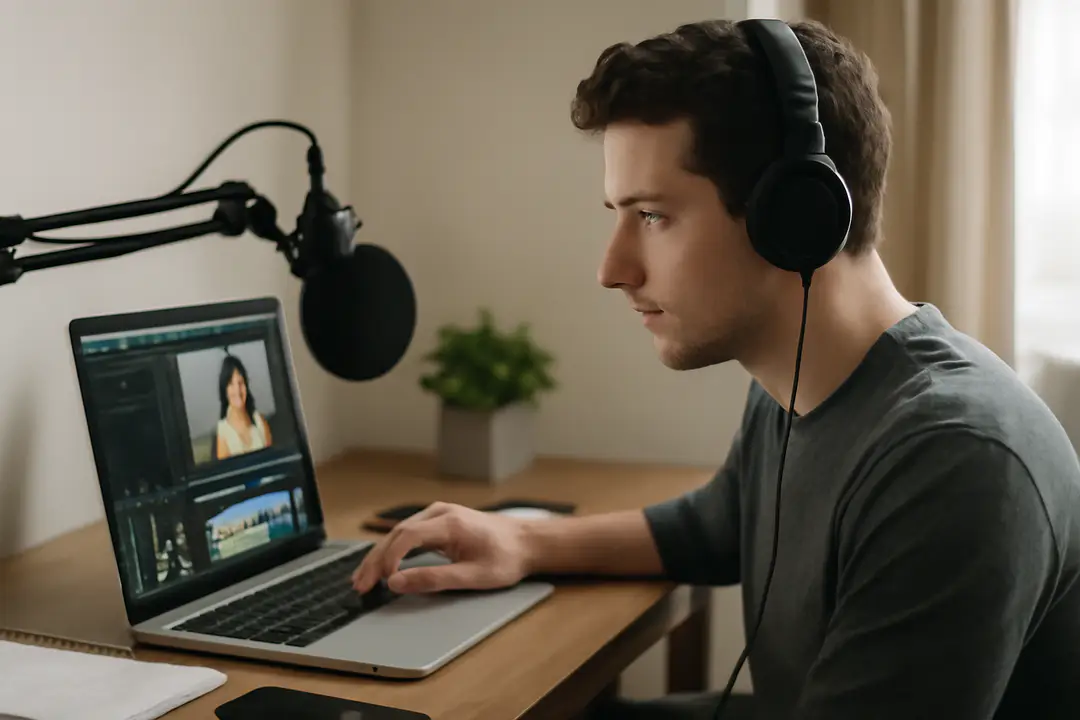
According to Cisco’s Visual Networking Index, by 2022, online videos will make up over 82% of all consumer internet traffic. That’s more than global web browsing and peer-to-peer sharing combined.
Many video creators seek fresh ways to stand out. Adding a custom voiceover can grab attention and make content more accessible. Using Sound of Text lets you generate clear, natural-sounding voiceovers from text to make your videos more engaging and accessible.
Why Voice Matters
When we watch a video, the voiceover guides our emotions and focus. A clear, confident voice can make instructions easy to follow. In marketing and education, voice tone can build trust and strengthen your message. Without a strong narration, great visuals can feel empty or confusing.
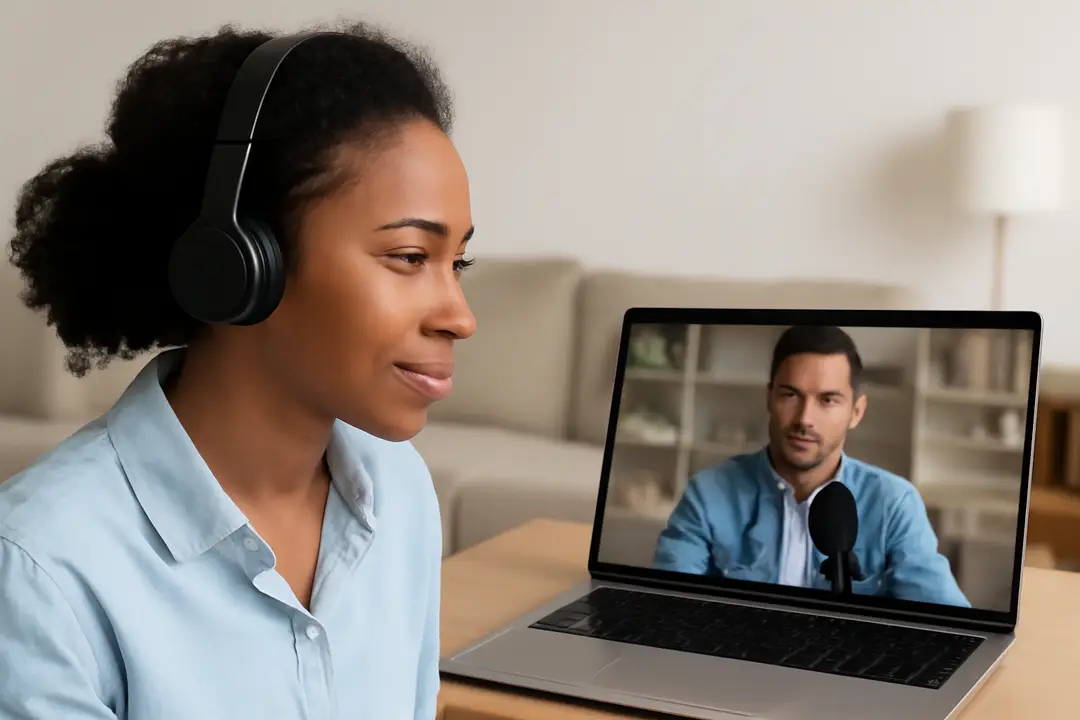
Many viewers have different learning styles. Some prefer listening to text over reading captions. Adding voice can increase accessibility and reach a wider audience. For example, social media posts with voiceovers often see 12% higher engagement.
Voice also shapes brand identity. A consistent, recognizable tone can set you apart. Think of how a friendly or authoritative narration style reflects your brand values. This can help form an emotional connection with viewers.
Using text-to-speech tools like Sound of Text makes professional narration affordable. You don’t need to hire voice actors or spend hours recording. With AI voices that sound natural, you maintain high quality at scale. This keeps your production process efficient.
Practical tip: choose a voice that matches your audience’s expectations. If you cater to young viewers, a bright, friendly tone works best. For corporate training, a clear and steady voice is more suitable. Testing a few styles can help you find the perfect match.
Also, the right voice can improve retention. Studies show that when information is heard and seen, memory recall improves by 40%. By syncing voice with on-screen text, you reinforce learning. This makes your videos both engaging and effective.
Setup Guide
Getting started with Sound of Text is simple. First, visit the website and log in or sign up free. The interface will prompt you to enter text in the box. You can paste your script or type directly, adjusting for brand tone and length.
Second, select your preferred language and voice. Sound of Text offers many accents and speaking styles. Pick one that best fits your audience’s expectations. You can preview voices before finalizing your choice.
Third, tweak settings such as speed and pitch. Slower pacing can help with complex topics. Higher pitch can create a sense of excitement or urgency. Each adjustment fine-tunes the final output.
Fourth, generate your audio file by clicking “Convert.” The tool processes your text into an MP3 or WAV clip. This usually takes just a few seconds.
Finally, download the audio and review it in your editing software. Trim any silent gaps and adjust volume levels to match your video’s background music or sound effects. Keep a consistent audio level throughout your project.
Practical tip: organize scripts with clear markers like “pause” or “emphasis” phrases. This helps when you want natural breathing or dramatic effect. Writing for voice is different than writing for reading. Speak your sentences out loud during drafting to catch awkward phrasing early.
For more advanced features, exploring other text-to-speech tools for content creators can offer additional voices and customization options. This helps you compare quality and price as your needs grow.
Voice Customization
Beyond basic selection, customizing voice output is key. Sound of Text allows you to control speed, pitch, and emphasis. Speed modifications help match narration to the pace of on-screen visuals.
If your video has fast cuts or energetic music, a slightly faster voice can maintain momentum. For tutorials or long lessons, slower narration improves comprehension. Test different speeds and listen to how the tone changes.
Pitch adjustment can make a voice sound deeper or lighter. A lower pitch might suit serious or formal content. On the other hand, a higher pitch can add friendliness and warmth, perfect for casual or promotional videos.
Emphasis tags help highlight key words. You can mark important phrases to sound louder or longer. This mimics human intonation and keeps listeners engaged. Use this when introducing main ideas or calls to action.
Sound of Text also offers SSML support for advanced users. With SSML tags, you can insert pauses, control pronunciation, and add volume changes. This level of detail brings AI voices closer to human speech patterns.
For creators who want even more realism, you can convert text to natural-sounding speech with advanced APIs. This option may require technical setup but yields impressive results.
Remember to keep customization subtle. Overly dramatic voices can distract. Aim for a natural flow to build viewer trust. Always preview changes before finalizing your audio file.
Video Integration
Integrating your audio into videos smoothly ensures a professional finish. Start by importing the audio file into your video editor. Most editors, like Adobe Premiere or DaVinci Resolve, support MP3 and WAV formats out of the box.
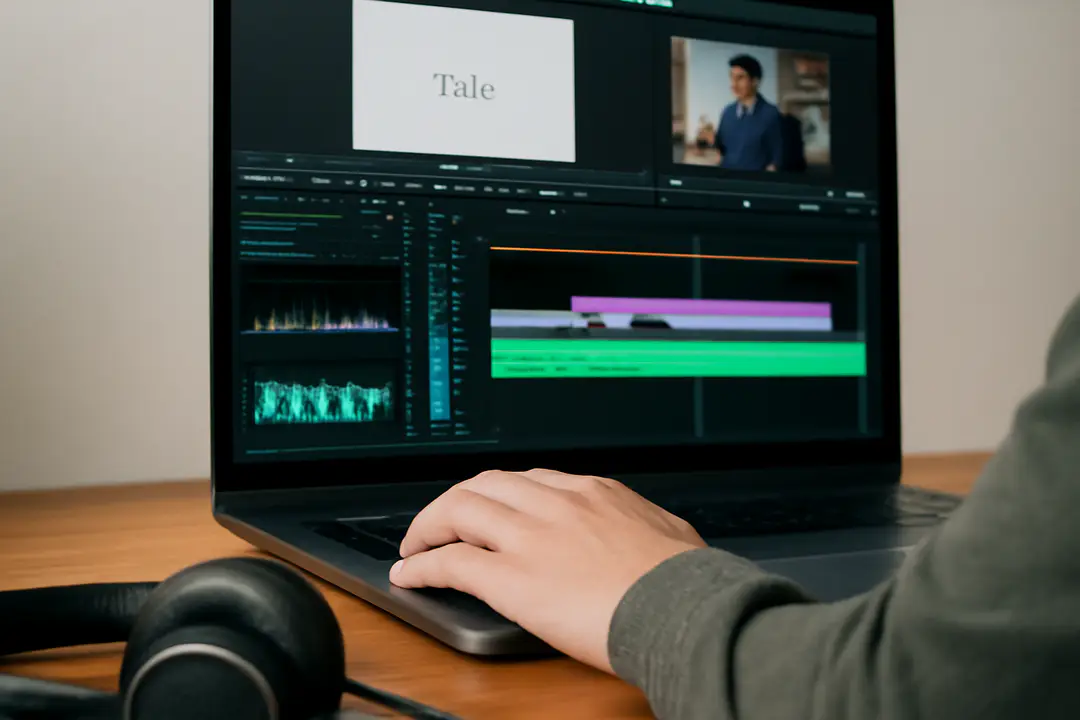
Align narration with visual cues. If your video opens with a title card, place a short pause at the beginning of your audio. This prevents the voice from starting mid-frame. You can add silent gaps directly in the audio editor or video timeline.
Layer background music under your voiceover. Keep music volume low, around 20-30% of its original level. This preserves clarity and prevents the narration from getting lost. A simple audio ducking technique in your editor can automate this process.
Use natural transitions between scenes and voice segments. Fade out the last sentence of one segment while fading in the next audio clip. This avoids jarring cuts that break immersion.
Syncing effects with narration boosts engagement. For example, if you say “look at this chart,” animate the chart at that exact moment. This reinforces your point visually and verbally.
Practical tip: consider adding subtitles or closed captions. This makes your content accessible to viewers with hearing loss and non-native speakers. Many platforms auto-generate captions, but you should review and correct them for accuracy.
Finally, test playback on different devices. Audio can sound different on headphones, laptop speakers, and mobile phones. Adjust EQ or volume levels to suit the most common listening situations of your audience.
Engagement Metrics
Measuring how your audience responds to voiceovers helps refine future projects. Key metrics include watch time, click-through rate (CTR), and retention. Here is a quick overview:
| Metric | Description | Tool |
|---|---|---|
| Watch Time | Total minutes audience spends watching | YouTube Analytics |
| CTR | Percentage clicking play or links | Vimeo Analytics |
| Retention | Percentage watching until end | Wistia Stats |
Watch time shows if your voiceover holds attention. A drop after a specific point can mean pacing issues. Listen back to that segment and adjust speed or tone.
CTR helps evaluate your hooks. If viewers aren’t clicking play, your intro may need a stronger promise. Try re-recording the first few lines with more energy.
Retention tracks how long viewers stay engaged. Low retention at the midpoint suggests content isn’t matching expectations. Use analytics heatmaps to spot exact drop-off points.
Practical tip: run A/B tests with different voices or styles. Some tools allow you to upload multiple audio versions and compare results. Small changes in tone or pacing often lead to significant gains.
Once you gather data, create a simple dashboard to track metrics over time. This lets you see trends, measure improvements, and justify investment in high-quality voiceovers.
Advanced Techniques
Once you master basic voiceovers, explore advanced methods to stand out. One idea is layering multiple voices for dialogue. You can label each speaker with tags like “Speaker 1” and “Speaker 2” when generating audio.
Another technique is using dynamic background sounds that react to voice intensity. For example, add light ambient noise during narration and mute it during key announcements. This subtle shift keeps viewers focused.
Consider integrating live voice recordings for a hybrid approach. Use AI-generated voice for bulk narration, then replace select parts with your own recordings. This adds a personal touch without increasing production time too much.
Translating videos into multiple languages expands your reach. With Sound of Text, you can quickly generate voiceovers in foreign languages. This is great for tutorials, marketing campaigns, or global products.
AI voice cloning offers another frontier. You can train models on a sample of your own voice and then generate new lines. This ensures brand consistency and adds a human feel.
Stay updated with emerging text-to-speech standards like Neural TTS. These models use deep learning to mimic human speech nuances, such as micro-pauses and breath sounds. Early adoption of these tools can set your videos apart.
Practical tip: keep an eye on file sizes and processing time. High-fidelity voice files may be large, impacting upload speeds and playback. Balance quality and efficiency by testing different formats.
Finally, collaborate with your audience. Ask them to suggest voice styles or read scripts for testing. This builds community engagement and ensures you meet audience preferences.
Conclusion
Using Sound of Text to add voiceovers creates a powerful way to connect with viewers. From basic setup to advanced techniques, you can shape tone, pacing, and style to suit any audience. This flexibility helps you produce professional videos without large budgets or lengthy recording sessions.
Remember to test voices, sync audio carefully, and measure engagement to guide improvements. Small tweaks in speed or emphasis can make a big difference. As you collect feedback and data, your narration will become more compelling and effective.
Whether you are a marketer, educator, or hobbyist, custom voiceovers increase accessibility and retention. By embracing AI-driven tools, you free up time to focus on creative storytelling. Each new project is an opportunity to refine your process and delight viewers.
As video content continues to dominate online platforms, adopting efficient and high-quality narration tools will set you apart. Your voice is the bridge between visuals and understanding—make it clear, engaging, and true to your brand.
Start experimenting today. Write a script, generate your first voice clip, and watch how a human-like narration transforms your video. With practice and data-driven tweaks, you’ll keep audiences engaged from start to finish.